

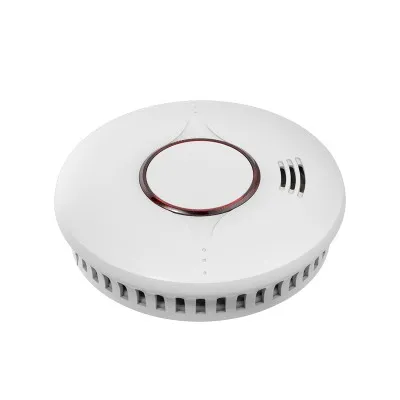


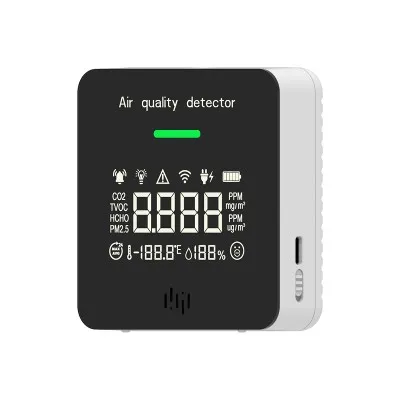


As a supplier of Smart Heat Detectors, I often receive inquiries from customers about issues they encounter, especially when their devices won't connect to Wi - Fi. This blog post aims to guide you through the troubleshooting process step by step, helping you get your Smart Heat Detector up and running on your Wi - Fi network.
1. Check the Basics
Before diving into complex technical solutions, it's essential to ensure that the most basic requirements are met.
Power Supply
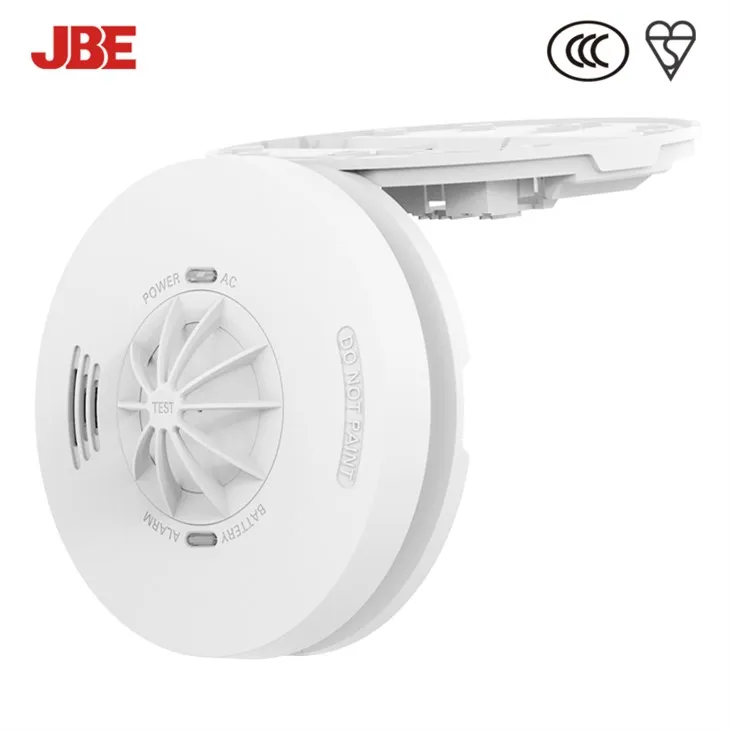
First, verify that your Smart Heat Detector is receiving power. Different models have various power sources. For instance, the Mains Power Heat Detector With Battery can be powered by the mains and has a battery backup. Make sure it's properly plugged into a working power outlet. If it uses batteries, check that they are inserted correctly and have enough charge. A low - power device may not function correctly or connect to Wi - Fi.
Wi - Fi Network Availability
Check if your Wi - Fi network is working. You can do this by connecting another device, such as a smartphone or laptop, to the same Wi - Fi network. If these devices can connect and access the internet, then the problem is likely with the Smart Heat Detector. If not, you may need to troubleshoot your Wi - Fi router. Restart the router by unplugging it from the power source, waiting for about 30 seconds, and then plugging it back in. This simple step can often resolve many Wi - Fi connectivity issues.
2. Verify the Detector's Wi - Fi Settings
Once you've confirmed that the power and Wi - Fi network are working, it's time to check the detector's Wi - Fi settings.
Network Selection
Ensure that your Smart Heat Detector is set to connect to the correct Wi - Fi network. Some detectors may have a built - in display or use a mobile app to configure the Wi - Fi settings. Open the app or access the detector's settings menu and select your Wi - Fi network from the list of available networks. If the network is not listed, it could be because the detector is out of range or the router's broadcast is disabled.
Password Accuracy
Double - check that you've entered the correct Wi - Fi password. Passwords are case - sensitive, so make sure you've typed it exactly as it is. If you've recently changed your Wi - Fi password, you'll need to update the password on the Smart Heat Detector as well.
3. Range and Interference
Wi - Fi signals can be affected by distance and interference from other devices.
Distance from the Router
The Smart Heat Detector needs to be within the range of your Wi - Fi router. If it's too far away, the signal strength may be too weak for a stable connection. Try moving the detector closer to the router and see if it can connect. You can also consider using Wi - Fi range extenders or mesh Wi - Fi systems to improve the coverage in your home or office.

Interference from Other Devices
Other electronic devices can interfere with Wi - Fi signals. Devices such as microwave ovens, cordless phones, and Bluetooth devices operate on similar frequencies as Wi - Fi and can cause interference. Try turning off these devices temporarily and see if the Smart Heat Detector can connect to Wi - Fi. Also, avoid placing the detector near large metal objects or thick walls, as these can also block Wi - Fi signals.
4. Firmware and Software Updates
Outdated firmware or software can cause connectivity issues.
Check for Firmware Updates
Most Smart Heat Detectors can be updated via a mobile app or a web - based interface. Check the app or the manufacturer's website for any available firmware updates. Updating the firmware can often fix bugs and improve the device's performance, including its ability to connect to Wi - Fi.
Mobile App Compatibility
If you're using a mobile app to configure the detector, make sure the app is up - to - date. An outdated app may not work correctly with the detector's new features or firmware. Check the app store on your smartphone for any available updates and install them.
5. Reset the Smart Heat Detector
If all else fails, you may need to reset the Smart Heat Detector.
Factory Reset
A factory reset will restore the detector to its original settings. This can sometimes resolve persistent connectivity issues. Refer to the detector's user manual for instructions on how to perform a factory reset. Keep in mind that a factory reset will erase all your custom settings, so you'll need to re - configure the detector, including setting up the Wi - Fi connection, after the reset.
6. Contact Technical Support
If you've followed all the steps above and still can't get your Smart Heat Detector to connect to Wi - Fi, it may be time to contact our technical support team.
Our team of experts is available to assist you further. They can help diagnose the problem and provide more advanced troubleshooting steps. Whether it's a hardware issue or a complex software problem, our support team has the knowledge and experience to get your detector up and running.
We offer a wide range of Smart Heat Detectors, including the Intelligent Heat Detector and Wireless Heat Detector, designed to provide reliable and accurate heat detection. If you're interested in purchasing our products or have any questions about our Smart Heat Detectors, we encourage you to contact us for procurement and negotiation. Our sales team is ready to discuss your specific needs and provide you with the best solutions for your home or business.
References
- Smart Heat Detector User Manuals
- Wi - Fi Router Manufacturer's Documentation
- General Wi - Fi Troubleshooting Guides


